
 By:
By: Two Types of PDF Passwords (This Matters)
Before you protect anything, you need to know there are two completely different kinds of PDF passwords. Mixing them up is the most common mistake people make.
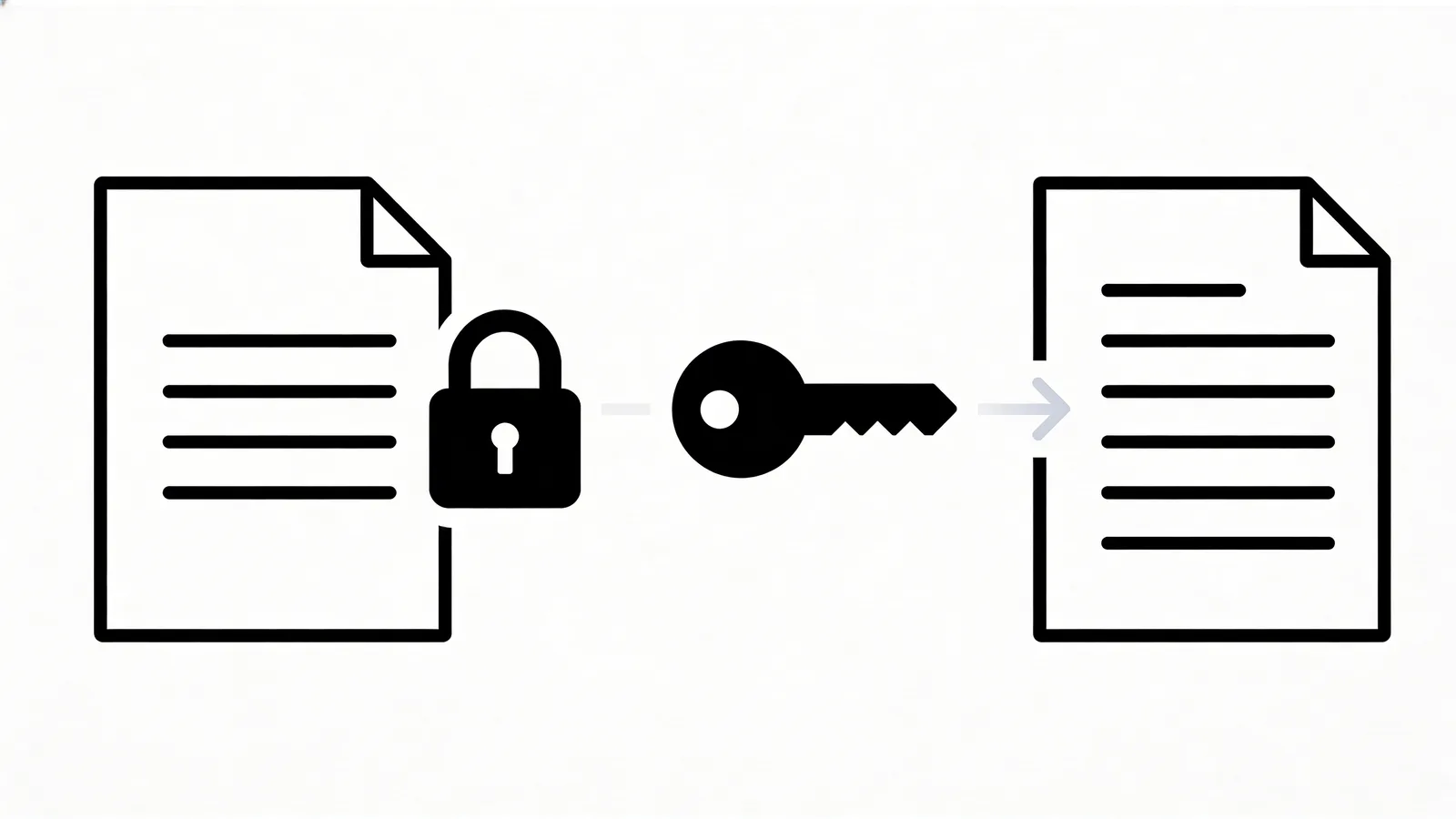
Open password (User password): Locks the door. Nobody can view the PDF without entering this password. The file is encrypted. Without the password, it's unreadable scrambled data.
Permissions password (Owner password): Sets rules. People can open and read the PDF, but you restrict what they can do. No printing. No copying text. No editing. The content is visible but locked down.
These do very different things. And the uncomfortable truth about the second one is worth knowing before you rely on it.
How Secure Is PDF Password Protection, Really?
Open passwords with AES-256 encryption are genuinely strong. Breaking one requires either guessing the password or brute-forcing it, and with a decent password, that would take longer than you'll be alive.
Permissions passwords are a different story. They're more like a polite request than a lock.
According to Locklizard's analysis of PDF security, permissions passwords can be removed in seconds using freely available tools. The restriction data isn't backed by encryption the same way. Any PDF reader that chooses to ignore the restrictions can simply do so. And many do.
Users on the AcrobatUsers forum have pointed out that even printing to a new PDF strips all permissions restrictions, giving you a completely unrestricted copy. It's a well-known workaround that basically anyone can perform with zero technical skill.
So if you're trying to stop someone from copying your text or printing your document, a permissions password won't reliably do that. If you're trying to stop someone from opening your file at all without a password, that actually works.
Big difference.
How to Add a Password (Every Platform)
Adobe Acrobat Pro
The standard method. Also the most expensive.
- Open your PDF in Acrobat Pro
- Go to File > Protect Using Password
- Choose whether to restrict viewing or editing
- Enter your password twice
- Select encryption level (pick AES-256)
- Save
Cost: $13/month. If you already have it, use it. Subscribing just for password protection isn't worth it.
Preview on Mac (Free)
Apple's built-in option. No extra software needed.
- Open the PDF in Preview
- File > Export as PDF
- Click "Show Details"
- Check "Encrypt"
- Enter and verify your password
- Save
The downside: Preview only supports open passwords. You can't set permissions restrictions. But since permissions passwords are weak anyway, this might be everything you need.
Microsoft Word (Free-ish)
If you're creating the PDF from a Word document:
- File > Save As > PDF
- Click Options
- Check "Encrypt the document with a password"
- Enter your password
- Save
This only works when creating the PDF. You can't password-protect an existing PDF this way.
LibreOffice (Free)
Open the PDF in LibreOffice Draw. File > Export as PDF. Under the Security tab, set your passwords. Works on Windows, Mac, and Linux. Totally free.
Online Tools
Several free browser-based tools can add passwords to existing PDFs. iLovePDF and Smallpdf both work. But they upload your file to their servers, which somewhat defeats the purpose of protecting a sensitive document.
Think about that for a second.
What Makes a Good PDF Password?
Encryption is only as strong as the password guarding it. AES-256 doesn't matter if your password is "company2026."
According to Keeper Security's analysis, a good PDF password should be at least 12 characters with a mix of upper and lowercase letters, numbers, and symbols. Avoid names, dictionary words, dates, or anything someone could guess from your social media.
Better yet, use a passphrase. Something like correct-horse-battery-staple is easier to remember and harder to crack than P@ssw0rd!.
A few rules:
- 12+ characters minimum. Length matters more than complexity.
- Random is better. Use a password manager to generate it.
- Never reuse. That password you use for everything? It's probably already in a breach database somewhere.
- Share it separately. Don't email the password in the same thread as the PDF. Text it. Call. Use a different channel.
When Do PDF Passwords Make Sense?
Password protection works well in certain situations:
- Sending contracts or legal docs by email where you need basic confidentiality
- Archiving sensitive records that shouldn't be casually opened
- Sharing financial documents with specific recipients
- Distributing pre-release materials that shouldn't leak early
It's a speed bump, not a vault. For most business situations, a speed bump is enough. Someone would need your password or serious motivation to get through AES-256 encryption with a strong password.
When Don't They Make Sense?
Passwords fall apart when:
- You need to control redistribution. Once someone has the password, they can share it. Or remove the password and share an unprotected copy. You lose control after that first share.
- You want to track who views it. A password tells you nothing about who actually opened the file or when.
- You need to revoke access. Can't take back a password once it's been shared. The file is out there forever.
- You're managing many recipients. Sending 50 people the same password is 50 chances for it to leak.
For these situations, you need something beyond password protection. Link-based sharing with access controls lets you revoke access, track views, and control distribution without passwords at all. The document lives online and you control who sees it.
Permissions Passwords: Should You Even Bother?
Honestly? They serve a social function more than a technical one. Setting "no print, no copy" on a PDF tells the recipient you'd prefer they don't do those things. A reasonable person will respect it.
A determined person will bypass it in 30 seconds.
If you're sending a draft with "do not distribute" permissions, it communicates intent. That has value in a business context. Just don't confuse it with actual security.
Encryption Strength Explained
PDFs support several encryption standards. Here's what they actually mean in practice:
| Standard | Key Size | Status |
|---|---|---|
| RC4 40-bit | Weak | Crackable in minutes. Avoid. |
| RC4 128-bit | Moderate | Outdated but still common in older tools. |
| AES-128 | Strong | Acceptable for most uses. |
| AES-256 | Very strong | Current best practice. Use this. |
AES-256 is what banks use. If your tool offers it, pick it. If it only offers RC4, find a better tool.
Older PDFs created with Acrobat 5-6 era tools often used RC4 40-bit encryption. These are trivially breakable today. If you have old protected PDFs with sensitive content, re-encrypt them with AES-256.
The Password Sharing Problem
You encrypted the PDF. Great. Now you need to tell the recipient the password.
If you email the password in the same thread as the PDF, anyone who intercepts the email has both. That's like mailing a locked box with the key taped to it.
Better approaches:
- Text the password while emailing the file
- Call and say it over the phone
- Use a password manager's sharing feature like 1Password or Bitwarden
- Agree on a password in person before sending
This extra step is annoying. No way around it. It's the price of password-based security.
A Practical Approach to PDF Security
For most people, here's what works:
- Use an open password with AES-256 encryption
- Make the password long and random (use a password manager)
- Share the password through a different channel than the PDF
- Keep the original unprotected file somewhere safe
- Accept that once someone has access, they have access
If you need more control than that, consider whether a PDF is the right format for your situation. An online flipbook with privacy controls gives you view tracking, access revocation, email gating, and domain restrictions. No passwords to manage or share. No worrying about who forwarded the file to whom.
For more PDF tools and guides, see our PDF tools guide.
FAQs
What encryption level should I use?
256-bit AES is the current standard and the strongest option available in most tools. Avoid anything below 128-bit. If your tool offers both, always pick AES-256.
Can I remove a password from a PDF later?
Yes, if you know the password. Open the PDF, enter the password, then save it without protection. Without the password, you're locked out like everyone else.
What happens if I forget the PDF password?
There's no built-in recovery. You'll need the original unprotected file or a password recovery tool. Recovery tools can work but may take hours or days depending on password complexity.
Is PDF password protection really secure?
It depends on the password. AES-256 encryption is strong, but weak passwords like 'password123' can be cracked in minutes. Use a long, random password for real security.
What's the difference between an open password and a permissions password?
An open password prevents anyone from viewing the PDF without it. A permissions password restricts actions like printing or copying but still lets people view the document. Permissions passwords are much easier to bypass.