
 By:
By: You Have Images. You Need a PDF.
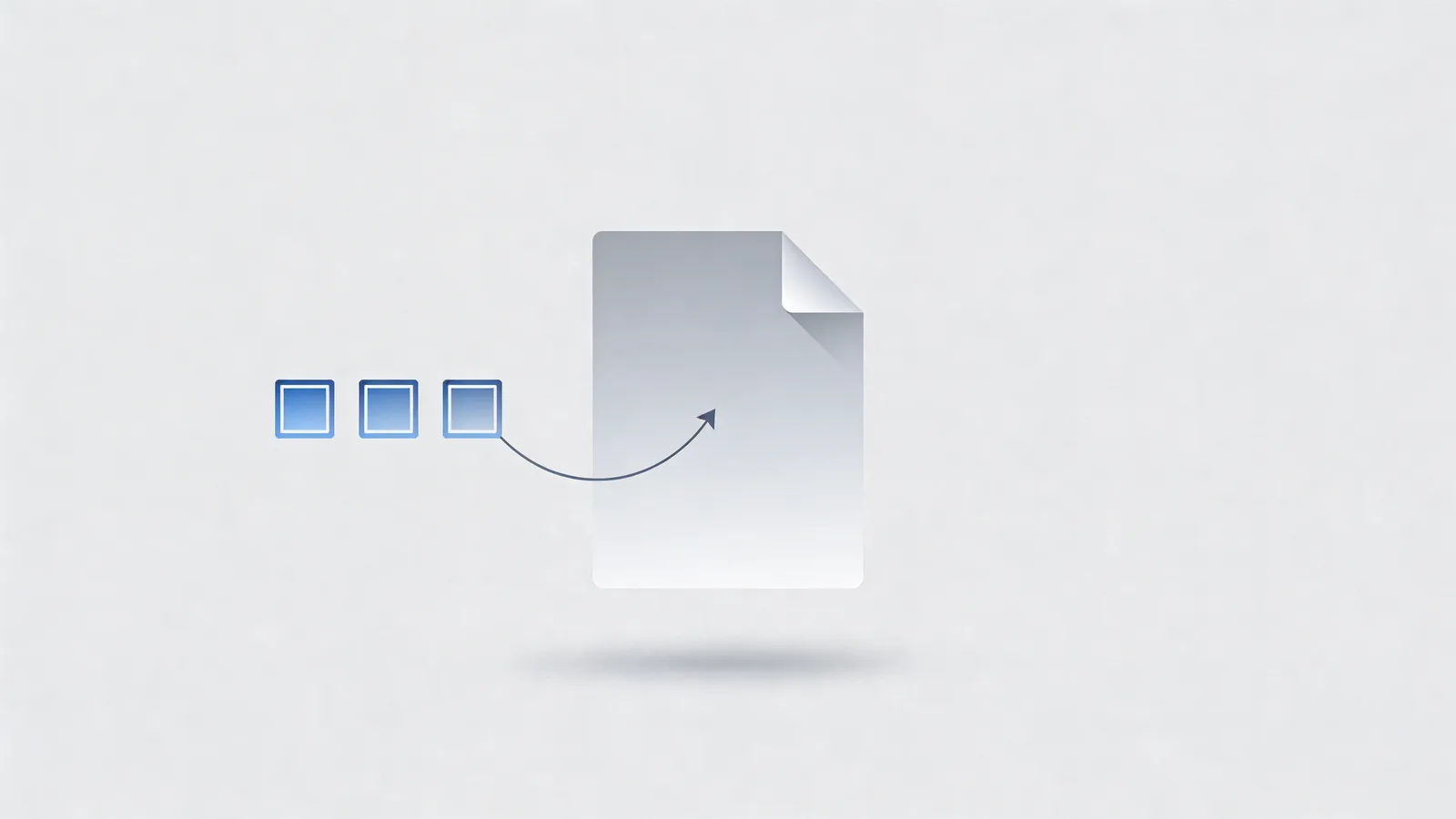
Maybe it's a stack of scanned receipts. Maybe it's screenshots from a design review. Maybe your photographer delivered 40 JPGs and your client wants one file.
Whatever the reason, you need those images in a PDF. Fast.
Good news: this takes about 30 seconds, it's free, and your files never leave your computer.
The Quick Way (Browser-Based)
Head to a browser-based converter like our images-to-PDF tool. The process is dead simple:
- Select your images. Drag them in or click to browse. Mix formats if you want.
- Reorder them. Drag and drop until the sequence makes sense.
- Hit convert. Done.
Your browser does all the work. No upload to a server, no waiting, no account needed.
What About the Order?
This is where most people trip up. You carefully select 20 images, hit convert, and the pages are in the wrong order. Annoying.
The fix: name your files with numbers before you start. 001-cover.jpg, 002-intro.jpg, 003-chart.jpg. Most tools sort alphabetically, so numbered prefixes keep everything in line. If the tool has drag-and-drop reordering, even better. Use it.
Which Image Format Works Best?
Short answer: it doesn't matter much. JPGs, PNGs, WebPs all convert fine.
But there are tradeoffs worth knowing:
- JPG works for photos and anything with lots of colors. Smaller files, slight compression artifacts if you look closely. For most documents, totally fine.
- PNG keeps things crisp. Logos, screenshots, anything with text or sharp edges. Larger files but no compression blur.
- WebP is the newer format that tries to do both. Works great, but some older tools don't support it yet.
If you're scanning documents, JPG at 300 DPI hits the sweet spot between quality and file size. For design work or anything going to print, PNG preserves every pixel.
What If the PDF Is Too Big?
You converted 50 high-res photos and now your PDF is 200MB. Classic.
A few options here. You can compress the images before converting. Most image editors let you reduce resolution or quality. Or you can convert first and then compress the PDF after. The second approach is usually easier because you only deal with one file.
For email-sized PDFs, aim for under 10MB. That usually means resizing images to 150 DPI instead of 300, which is plenty for on-screen viewing. Only keep 300 DPI if someone's printing it.
When a Flipbook Makes More Sense
If you're putting together a photo portfolio, a product lookbook, or any image-heavy document meant for sharing, a PDF might not be the best end format. People download it, scroll through it, maybe look at three pages and close it.
A flipbook turns that same collection into something people actually browse. Page-flip animation, works in the browser, loads fast on phones. And you can see who looked at which pages.
Worth considering if the PDF is going out to clients or prospects rather than sitting in a folder.
Doing This on a Phone?
It works. Most browser-based tools handle mobile just fine. Select photos from your camera roll, reorder, convert. The experience isn't as smooth as desktop for large batches, but for 5-10 images it's perfectly functional.
iPhones have a built-in trick too: select multiple photos in the Photos app, tap Share, then Print. When the print preview appears, pinch outward on it. That creates a PDF. Weird but it works.
Batch Converting: The Folder Problem
Sometimes you don't want one PDF with all images. You want each image as its own single-page PDF. Different problem.
For this, browser tools usually aren't the right answer. You want something like a command-line tool or a desktop app that can process a folder. On Mac, Preview can do it: open an image, Export as PDF, repeat. On Windows, right-click and "Print to PDF" works one at a time.
For actual batch processing, users in forums commonly mention tools like ImageMagick (free, command line) or Adobe Acrobat (paid, point-and-click). The right choice depends on how often you're doing this and whether you're comfortable with a terminal.
The Quality Question
People worry about quality loss when converting. And that's fair. But here's what actually happens: a good converter puts your image on a PDF page at its native resolution. Nothing gets resampled, nothing gets compressed, nothing changes. The PDF is just a wrapper.
Quality only degrades if the tool re-compresses your images during conversion. Cheap tools sometimes do this to reduce file size. Good ones give you the choice.
If quality matters for your use case, convert one test image first. Zoom in on the PDF version and compare it to the original. If they look identical, you're good. If the PDF looks softer, the tool is compressing behind the scenes and you need a different one.
For more on working with PDFs, check out our complete PDF tools guide.
FAQs
Does converting images to PDF reduce quality?
Not if you use a tool that keeps the original resolution. Our browser-based converter preserves your image quality exactly as-is. The PDF is just a container.
Can I combine different image formats into one PDF?
Yes. Mix JPGs, PNGs, WebPs, and other formats in a single PDF. The converter handles the format differences for you.
How do I control the page order?
Drag and drop to reorder before converting. Most tools let you rearrange after selecting your files.
Is there a limit on how many images I can combine?
Browser-based tools can handle dozens of images without issue. If you're working with hundreds of high-res photos, you might want a desktop tool to avoid memory limits.