
 By:
By: When the Internet Isn't an Option
Most flipbooks live online. You share a link. Someone clicks it. The flipbook loads in their browser. Simple.
But what happens when there's no internet?
You're at a trade show and the convention center Wi-Fi is crawling. You're running a kiosk in a retail store with no network connection. You're presenting to a client in a basement conference room where your phone has zero bars. You need to hand a sales rep a USB drive with your entire product catalog so they can show it to customers in rural areas where cellular coverage doesn't exist.
These aren't edge cases. They're Tuesday.
The solution is an HTML5 download. You take your flipbook, export it as a self-contained HTML5 package, and it runs locally on any computer with a browser. No internet required. No app to install. No login. Just open the file and start flipping.
What Is an HTML5 Flipbook Download?
When you download a flipbook as HTML5, you get a folder containing everything needed to display the flipbook offline:
- An HTML file (the entry point you open in a browser)
- All page images (pre-rendered from your PDF)
- The JavaScript that powers the page-turn animations and navigation
- CSS for styling and layout
- Any fonts the viewer needs
It's basically a small, self-contained website. But instead of living on a server, it lives on your laptop, a USB drive, or a kiosk computer. Double-click the HTML file, your default browser opens, and the flipbook loads instantly.
The W3C's specification for HTML5 ensures that this format works consistently across browsers and operating systems. You're not relying on proprietary software or plugins. Just web standards that every modern browser supports.
How to Create One in Flipbooker
The process takes about two minutes, assuming you already have a flipbook created.
Step 1: Open Your Flipbook
Log into Flipbooker and navigate to the flipbook you want to download. If you haven't created one yet, upload a PDF and convert it first.
Step 2: Go to Share Settings
Click the Share button on your flipbook. You'll see tabs for Link, Embed, and Download.
Step 3: Select HTML5 Download
Under the Download tab, choose "HTML5 Package." This bundles everything into a downloadable ZIP file.
Step 4: Download and Unzip
Save the ZIP file to your computer. Extract it. Inside you'll find the HTML file and supporting folders. Open the HTML file in any browser to test it.
That's it. You now have a fully functional flipbook that works without internet.
For more on sharing and embedding options, the flipbook guide covers all the distribution methods available.
Where Offline Flipbooks Actually Get Used
Trade Shows and Conferences
Convention Wi-Fi is famously unreliable. Thousands of attendees, dozens of exhibitors streaming video, and a network that buckles under the load. If your booth demo depends on a cloud-hosted flipbook loading fast, you're gambling.
An offline flipbook on the booth laptop eliminates that risk entirely. Product catalogs, spec sheets, case studies, pricing decks. All available instantly, no matter what the network is doing. Load them before you arrive and don't think about connectivity again.
Retail Kiosks and In-Store Displays
Retail environments often have kiosk computers or tablets that aren't connected to the internet for security reasons. Or the store's network is locked down and only authorized devices can connect.
An HTML5 flipbook on a kiosk lets customers browse your catalog, flip through lookbooks, or explore product options without any network dependency. A furniture store can show its full catalog. A car dealership can display trim options and pricing. A hotel lobby can offer a digital concierge guide.
Sales Presentations in the Field
Not every client meeting happens in an office with fast Wi-Fi. Sales reps visit factories, construction sites, warehouses, and rural businesses where internet access ranges from spotty to nonexistent.
Mark Roberge, former CRO of HubSpot, wrote in The Sales Acceleration Formula that the best sales reps "remove friction from the buying process." Fumbling with a loading screen while your prospect waits is friction. An offline flipbook on your laptop removes it completely.
USB Distribution
Some industries still distribute materials on USB drives. It sounds old-school, but it works when your audience includes people who:
- Work in secure environments that block external websites
- Don't check email regularly
- Need offline access in remote locations
- Prefer physical media they can hand to colleagues
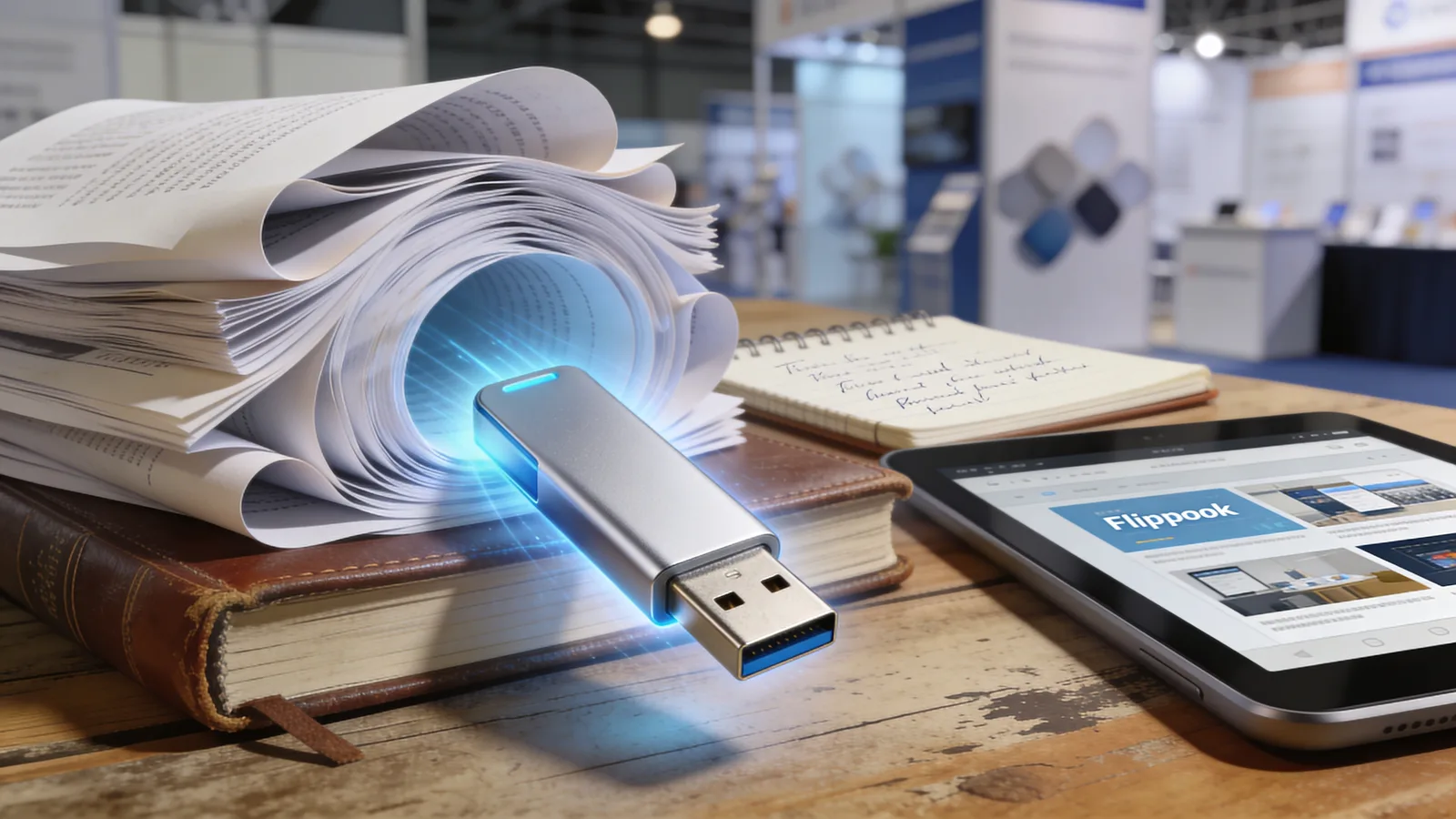
Copy your HTML5 flipbook folder to a branded USB drive and you've got a tangible leave-behind that's more impressive than a printed brochure and more functional than a PDF.
Training and Education
Training materials that need to work in classrooms, workshops, or field locations where internet isn't guaranteed. A teacher in a rural school. A safety trainer at a construction site. A corporate trainer running sessions in a conference room that somehow has no Wi-Fi in 2026.
What Works Offline and What Doesn't?
This is important to understand before you distribute.
Works offline:
- Page-turn animations and navigation
- Table of contents and page jumping
- Internal links (links to other pages within the flipbook)
- Zoom and fullscreen
- Search (if the flipbook includes it)
- All images and graphics
Doesn't work offline:
- Links to external websites (they need internet to load the destination)
- Embedded YouTube or Vimeo videos (they stream from those services)
- Analytics and tracking (data can't be sent without a connection)
- Lead capture forms (form submissions need a server)
If you need video to work offline, upload the video file directly to your flipbook instead of embedding from a streaming service. Directly uploaded videos get bundled into the HTML5 package.
Tips for a Better Offline Experience
Keep File Size Reasonable
A 500-page catalog downloaded as HTML5 could be several hundred megabytes. That's fine for a laptop with plenty of storage. It's not fine for a USB drive you're handing out at a conference.
If file size matters, consider splitting large flipbooks into sections. A 50-page highlights catalog instead of the full 500-page version. You can always include a link to the full online version for when they're back on Wi-Fi.
Test Before You Distribute
Open the HTML5 file on the actual device where it'll be used. If it's a kiosk, test on the kiosk. If it's a USB drive, test from the USB drive. Some browsers have security restrictions around local files that can behave differently than files loaded from a server.
Chrome, in particular, can be picky about loading local resources. If you run into issues, try Firefox or Edge, which tend to be more permissive with local HTML files.
Set Up Auto-Launch for Kiosks
If you're using the flipbook on a kiosk or dedicated display, set the browser to launch automatically in fullscreen (kiosk mode) when the computer starts. Every major browser supports this:
- Chrome:
chrome --kiosk file:///path/to/flipbook.html - Firefox: Install a kiosk add-on or use
firefox --kiosk file:///path/to/flipbook.html - Edge:
msedge --kiosk file:///path/to/flipbook.html
This gives visitors a seamless experience. No browser chrome, no address bar. Just the flipbook filling the screen.
Include a Fallback
If you're distributing on USB, include a README file with the online URL as a fallback. Something like: "Open flipbook.html to view offline. For the latest version with all interactive features, visit your URL." Simple. Covers both scenarios.
The Tradeoff You Should Know About
Offline flipbooks are snapshots. They're frozen in time. If you update your product pricing next week, the offline version still shows the old prices. If you fix a typo, the offline copies floating around still have the typo.
For content that changes rarely (annual catalogs, training manuals, reference guides), this is fine. For content that changes often (pricing, availability, time-sensitive promotions), consider whether offline distribution makes sense or whether a stable online link is better.
The best approach for many teams is both. An online flipbook as the canonical, always-current version. And offline HTML5 downloads for the specific situations where internet isn't available.
For more on creating and distributing flipbooks, the flipbook guide covers the full workflow from PDF upload to sharing.
FAQs
Will an offline HTML5 flipbook work on any computer?
Yes. It runs in any modern web browser. Windows, Mac, Linux, Chromebook. No installation needed. Just open the HTML file and it loads. The only requirement is a browser that supports HTML5, which covers every browser released in the last decade.
How big is the downloaded HTML5 file?
It depends on the number of pages and image quality in your flipbook. A 20-page brochure is typically 15-40MB. A 100-page catalog could be 100-200MB. The download bundles all page images, fonts, and the viewer code into a single package.
Can I put the HTML5 flipbook on a USB drive?
Yes, and this is one of the best use cases. Copy the downloaded folder to a USB drive, and anyone can open it by double-clicking the HTML file. No internet, no software installation, no account needed.
Do interactive elements like links and videos work offline?
Links to external websites won't work without internet. Links to other pages within the flipbook work fine. Embedded videos from YouTube or Vimeo won't play offline. If you need video to work offline, upload the video file directly rather than embedding from a streaming service.
Can I update an offline flipbook after distributing it?
No. That's the tradeoff. An offline flipbook is a snapshot. Once you hand someone a USB drive or install it on a kiosk, that version is frozen. You'd need to redistribute the updated file. For content that changes frequently, an online flipbook with a stable URL is usually better.